

A special message from the White House.https://t.co/YxFcHfA5qy
— House of Cards (@HouseofCards) December 1, 2014
Mark your calendar!
A special message from the White House.https://t.co/YxFcHfA5qy
— House of Cards (@HouseofCards) December 1, 2014
Mark your calendar!
Back in May, a friend posted a note about the 30 Days of Creativity challenge. It’s an annual event designed to encourage and inspire personal creativity every day for each of the thirty days of June–with the added benefit of actually building a habit of creating.
I love a challenge. So I signed up and committed to creating something every day.
Most of my creations have a photographic root. I enjoy photography, and with my iPhone in my pocket, I always have a camera with me. For this challenge, I flexed my creative muscles, creating one haiku, two infographics, two sketches, one hand-lettered note, two videos, and of course, many, many photos.
One outgrowth of this is that I started up a Muir Monday meme that fits nicely with my hiking web site. Each Monday, I’m taking a photo that I took and combining it with words of wisdom from John Muir.
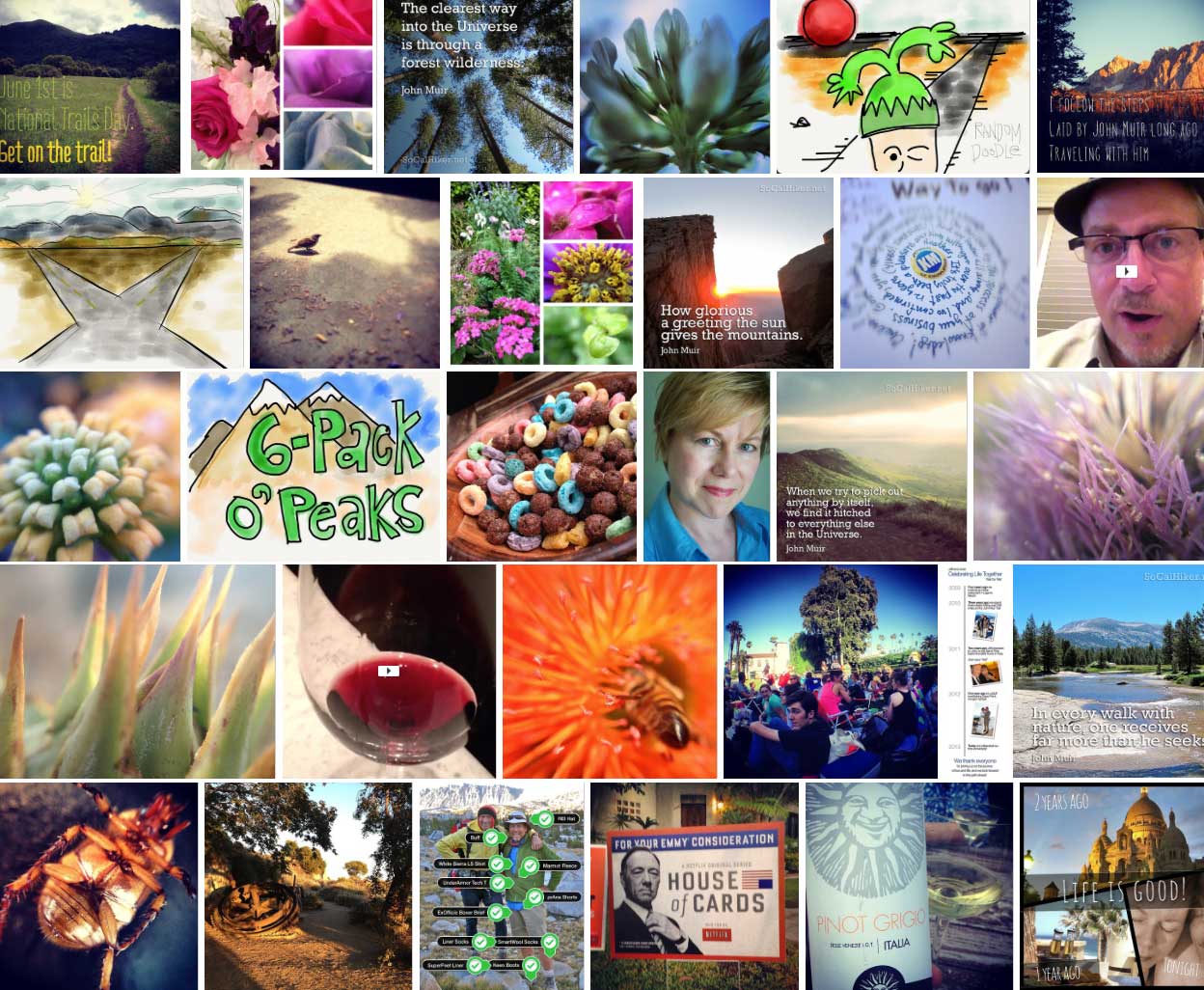
Here’s a collage of all thirty creations in chronological order, or you can view the entire set in all its interactive glory.

I encourage you to take on your own challenge. Flex your creative muscle. Go outside of your comfort zone. You might find it habit-forming.

 I’ve been using the location-based social network Foursquare since 2009. Although it will come as no surprise to those who know me, my first check-in was at a Starbucks — although I was surprised to find it was in West Hollywood.
Since then, I’ve checked in 4,456 times, across the United States and around the world. What does this look like? Foursquare put together a Time Machine that takes you on a visual tour of your check-in history. Here’s what mine looked like:
I know some of you see Foursquare as a waste of time. I’ve found it useful, if for nothing else, as my digital memory. When my wife asks me, “What was the name of that souffle place in Paris that we loved?” I can tell her. And because I’ve used Foursquare regularly over the past four years, there’s a lot that the data says about me.
The Time Machine not only produces a slick animated history with an semi-annoying soundtrack, it also cranks out the requisite infographic. I’ve broken it into chunks to share my analysis.
First, there’s a heat map that shows where most of my check-ins have occurred. From 2009-2012, I lived in south Orange County, so this doesn’t really surprise me. You can see regular visits to places in Dana Point, as well as my work in Aliso Viejo.

Each of the colors represents a different kind of location. By far, most of my check-ins have been at restaurants and coffee shops. But the top spot goes to the office.
The category with the fewest check-ins is college and education. Again, since I’m not a full-time student, not surprising. When you look at the breakdown by year, you’ll notice a big growth in the number of outdoors and recreation check-ins. While I’ve always been active outdoors, I haven’t always made a point of checking in (you go outdoors to unplug, right?). Apparently my view has shifted.

My favorite place? No question about it — Starbucks. I’ve logged 830 coffee shop checkins. And my favorite food? The data says I love Mexican food best, followed closely by… tacos? Go figure.

When you look at patterns in activity, you’ll see that I most often grab a caffeine fix before heading to the office.

I was disappointed that their map didn’t show my international travel. But I have done a fair amount of travel around the country. My most visited cities? Where I live or work.

Not anything that I don’t have a pretty good general feel for. I like coffee (especially Starbucks) and Mexican food. I have been pretty consistent about checking in. And if marketers want to mine this data? Have at it. I’ll be watching my mailbox for invitations to coffee and tacos (I am, after all, a loyal customer).
What I love about Foursquare I’ve touched on before. I have a chance to share my experience with others. I learn from the experience of others (“try the french toast!”). And I have a virtual diary of where I’ve been, and when. That has proven useful to me personally over and again, and remains the main reason I continue to use Foursquare. Your mileage may vary.
If you’re a Foursquare user, give the time machine a spin yourself. And let me know what you think about living out loud, geographically-speaking.

It’s Day Three of my 30 Days of Creativity project, and this creation combines a photo from my John Muir Trail trip and thoughtful quote from John Muir himself. This is part of a weekly meme I’ve started at SoCalHiker.net called Muir Mondays.
The clearest way into the Universe is through a forest wilderness. – John Muir
I took this photo in late July 2010, lying on my back on a picnic table in the backpacker’s campground in Yosemite Valley, the day before we began our three-week thru-hike on the John Muir Trail (JMT). The trees swayed in the wind, and reached so tall they seemed to yearn for the stars. It was a perfect setting for pondering the trail ahead.
I tweaked the photo first in SnapSeed, but ended up bringing it into Photoshop to add the text and a translucent gradient (to aid text readability).
In my experience, nature is the perfect muse. What inspires you? Let me know in the comments.

For Day Two of the 30 Days of Creativity project, I submit another photo project. My wife brought home a beautiful arrangement of flowers from a work event. The flowers are beautiful on their own, but when you look closer, there is another world of beauty revealed, rich with textures and colors.
I created this entirely on my iPhone 4S, using an Olloclip to capture the macro images, then compositing with the handy Moldiv collage editor for iOS.
If you browse my Flickr photostream my love of macros becomes obvious.

My first creation for the 30 Days of Creativity project was simple, but it was a busy day, what with WordCamp OC and the Mile…Mile and a Half premiere. I started with a photo that I took on our Bald Mountain hike at Sugarloaf Ridge State Park in Sonoma, applied some text reminding everyone that June 1st is National Trails Day, and softened it in Instagram. Done.
My friend Kolby (aka The Hike Guy) — trail journalist extraordinaire and all-around great guy — posted a note on Facebook about something called 30 Days of Creativity. It’s an annual event that occurs during the 30 days of June, and it’s intended to give creators a little extra motivation to make something. How? By committing to creating something — anything — on each of the 30 days of June. And just maybe, creating a habit of creating in the process.
Signing up is as easy as sending a tweet to @createstuff saying “I pledge to create something everyday for 30 days in a row.” You can also use the #30doc hashtag on your creations. Tweet them out, or pin them to the Pinterest board.
I can do anything for thirty days, so I’m in.
Are you a creator? Share a note in the comments below with a link so we can connect!